
How to Fix IPTV Buffering Issues UK 2026: 15 Proven Solutions
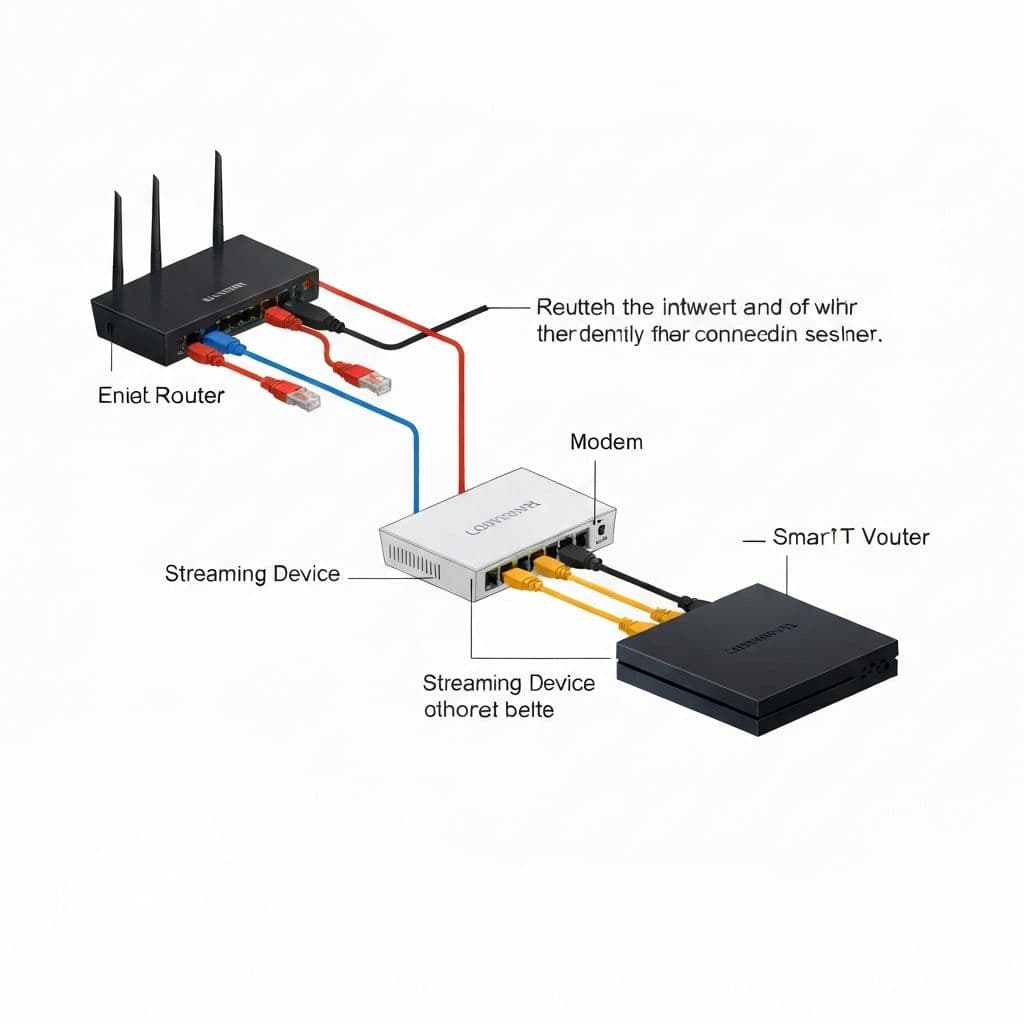
Buffering ruins the IPTV experience. This comprehensive guide provides 15 proven solutions to eliminate buffering, freezing, and lag on your UK IPTV service in 2026.
Understanding Why IPTV Buffers
Before fixing buffering, understand the root causes:
- Internet speed: Insufficient bandwidth for stream quality
- Network congestion: Too many devices using your connection
- Server issues: Provider's infrastructure overloaded
- Device limitations: Older hardware can't process streams
- Wi-Fi problems: Weak signal or interference
- ISP throttling: Internet provider limiting IPTV traffic
15 Solutions to Eliminate IPTV Buffering
1. Test Your Internet Speed (Most Important)
Start with a speed test using Speedtest.net:
- SD streaming: Requires 5+ Mbps
- HD streaming: Requires 15-20 Mbps
- 4K streaming: Requires 30-50 Mbps
Pro Tip: Test speed on the actual device you're streaming on, not just your phone or laptop.
2. Switch to Wired Ethernet Connection
Wi-Fi is convenient but unreliable for IPTV. Ethernet provides:
- Stable connection without drop-outs
- Lower latency and faster speeds
- No interference from walls or other devices
For Firestick users, consider an Ethernet adapter (£10-15 on Amazon) for reliable performance.
3. Restart Your Router (Simple but Effective)
Your router accumulates connection issues over time. Restart it:
- Unplug router power cable
- Wait 30 seconds
- Plug back in and wait for full boot-up
- Test IPTV stream again
Do this weekly for optimal performance.
4. Reduce Network Congestion
Too many devices competing for bandwidth causes buffering:
- Pause downloads and uploads while streaming
- Disconnect unused devices from Wi-Fi
- Ask family members to avoid heavy internet use during viewing
- Schedule smart home device updates for off-hours
5. Change Your Router's Wi-Fi Channel
Neighboring Wi-Fi networks cause interference. Change to a less crowded channel:
- Download a Wi-Fi analyzer app
- Identify least congested channel
- Log into router settings (usually 192.168.1.1)
- Change 2.4GHz channel to 1, 6, or 11
- Change 5GHz channel to any available
6. Use 5GHz Wi-Fi Band (If Available)
Modern routers offer 2.4GHz and 5GHz bands:
- 2.4GHz: Better range, more interference
- 5GHz: Faster speed, less interference, shorter range
For IPTV, use 5GHz when your device is close to the router.
7. Clear IPTV App Cache and Data
Apps accumulate junk data that slows performance:
For Firestick/Android:
- Go to Settings → Applications
- Select Manage Installed Applications
- Find your IPTV app (IPTV Smarters, TiviMate, etc.)
- Click "Clear Cache"
- Click "Clear Data" (you'll need to re-login)
Do this monthly for optimal performance.
8. Change Stream Format in IPTV App
Different stream protocols perform better on different networks:
- HLS (HTTP Live Streaming): Most stable, better for slower connections
- MPEG-TS: Lower latency, requires faster connection
In your IPTV app settings, try switching between formats to find what works best.
9. Lower Stream Quality Temporarily
If nothing else works, reduce quality:
- Switch from 4K to HD
- Switch from HD to SD
This isn't ideal, but stable SD is better than buffering 4K.
10. Update Your IPTV App
Outdated apps have bugs and performance issues:
- Check for app updates in your device's app store
- Enable automatic updates for convenience
- Consider switching to a better-optimized player
11. Upgrade Your Streaming Device
Old devices struggle with modern IPTV streams. Upgrade if you're using:
- Firestick 1st/2nd generation → Upgrade to 4K Max
- Android box with 1GB RAM → Upgrade to 4GB+ model
- Old Smart TV → Add external streaming device
12. Use a VPN to Bypass ISP Throttling
Some UK ISPs throttle IPTV traffic. A VPN solves this by:
- Encrypting your traffic so ISP can't identify IPTV
- Routing through faster servers
- Providing additional privacy
Recommended VPNs for IPTV UK:
- NordVPN - Fast UK servers
- ExpressVPN - Reliable performance
- Surfshark - Budget-friendly option
13. Change IPTV Provider (If Server is the Problem)
Sometimes the issue isn't your setup—it's your provider's servers. Signs you need a new provider:
- Buffering occurs even with fast internet
- Other streaming services work fine
- Buffering happens during specific shows/events
- Poor customer support or no response
AmbKonnect uses anti-buffer technology with CDN servers across the UK for consistent performance, even during live sports events.
Try AmbKonnect Risk-Free
Experience buffer-free streaming with our 24-hour free trial. No credit card required.
Start Free Trial14. Enable Hardware Acceleration
Most IPTV apps support hardware acceleration for smoother playback:
- Open your IPTV app settings
- Find "Player Settings" or "Playback"
- Enable "Hardware Acceleration" or "Hardware Decoding"
- Restart the app
15. Upgrade Your Internet Plan
If you consistently have multiple streams or 4K needs, upgrade your package:
- Switch from ADSL to fibre broadband
- Upgrade from 50 Mbps to 100+ Mbps
- Consider Virgin Media, BT, or Sky fibre packages
Quick Troubleshooting Checklist
Use this checklist when buffering occurs:
- ✅ Run speed test - is it adequate?
- ✅ Restart router - has it been running for days?
- ✅ Check other devices - are they using bandwidth?
- ✅ Test ethernet connection - is Wi-Fi the problem?
- ✅ Clear app cache - when did you last do this?
- ✅ Try different stream format - HLS vs MPEG-TS?
- ✅ Test with VPN - is ISP throttling?
- ✅ Contact provider - are servers having issues?
Advanced Solutions for Tech-Savvy Users
Configure Router QoS (Quality of Service)
QoS prioritizes IPTV traffic over other devices:
- Access your router admin panel
- Find QoS or Traffic Management settings
- Set your streaming device as highest priority
- Limit bandwidth for other devices
Use Google DNS or Cloudflare DNS
Faster DNS can improve stream start times:
- Google DNS: 8.8.8.8 / 8.8.4.4
- Cloudflare DNS: 1.1.1.1 / 1.0.0.1
Change DNS in your router settings for all devices or in device network settings individually.
When to Contact Your IPTV Provider
If you've tried everything and buffering persists, contact your provider. Provide them with:
- Your internet speed test results
- Device type and model
- Specific channels that buffer
- Time of day buffering occurs
- Whether you're using Wi-Fi or ethernet
Quality providers like AmbKonnect offer 24/7 support to diagnose and resolve issues quickly.
Prevention is Better Than Cure
Prevent buffering before it starts:
- Restart router weekly
- Clear app cache monthly
- Update apps and firmware regularly
- Test internet speed periodically
- Use wired connections when possible
- Choose quality IPTV providers with reliable infrastructure
Final Thoughts
IPTV buffering is frustrating but almost always fixable. Start with the basics—internet speed, router restart, and app cache—before moving to advanced solutions.
If your provider's servers are the bottleneck, no amount of troubleshooting will help. That's why choosing a quality service with anti-buffer technology and reliable infrastructure is crucial.
Try AmbKonnect free for 24 hours and experience the difference that proper infrastructure makes.